

Membership Organizations now have a Summary Reports tab to easily view and export your membership organization data. To view the Membership Organization Summary Reports, navigate to Reports >> Summary Reports in your dashboard.

On the Summary Reports page, you can view a number of reports and a short summary of what is included in each. Use the search bar and checkboxes at the top of the report to search for a specific report or filter by the report types you are interested in (ie. Analytics & Marketing, Memberships, or Store).
We currently have the following reports linked to this Summary Reports page.
Members by Level
The Members by Level report (located on the Dashboard tab) provides an overview of the number of members at each membership level on the first day of each month.


You can learn more about the Members by Level report and other reports on this Dashboard tab in this blog post.
Membership Overview
The Membership Overview report (located on the Dashboard tab) provides a summary of your membership data per month. It breaks down the number of active members/memberships, renewed memberships, and expired memberships for each month.


You can learn more about the Membership Overview and other reports on this Dashboard tab in this blog post.
Membership Sales Summary Report
The Membership Sales Summary Report (under Reports >> Membership Sales Summary Report) is an overview of membership sales by membership level.

Note: This report is not intended for reconciling exactly to transactions. It is intended to give you a quick overview of your sales per membership level.
This table shows the following
- Number Sold: The number of memberships sold at this particular level (including transferred, cancelled, deleted, or refunded). Note: It also notes the number of these memberships sold that are still Active
- Gross Revenue: Total amount paid for the memberships.
- Total Discounts: The discount from coupons.
- Total Processing Fees: Total processing fee whether paid by the registrant or the event
- Net Revenue: Gross revenue minus total discounts and processing fees. Note: This does not account for refunds or initial payments made after the initial registration.
- Net Revenue Per Membership: Net revenue divided by the number of memberships sold. Note: Transferred memberships are credited for their original purchase, so that revenue is not included in the new membership level.
By default, this report shows this data for the life of your membership organization. You can use the date filters at the top of the report to set a specific date range for which you would like to view this data.
Date of Purchase Report
The Date of Purchase Report (under Reports >> Date of Purchase Report) tracks how many memberships were sold each day. This is displayed in a calendar view.

You can click into a particular day to view a more detailed breakdown of the memberships sold. This will show a membership sales summary for that particular day, including:
- Number of Memberships Sold: The total of memberships sold on this date as well as the memberships sold broken down by membership level (including transferred, cancelled, deleted, or refunded).
- Gross Revenue: Total amount paid for the memberships.
- Total Discounts: The discount from coupons.
- Total Processing Fees: Total processing fee whether paid by the registrant or the event
- Net Revenue: Gross revenue minus total discounts and processing fees. Note: This does not account for refunds or initial payments made after the initial registration.
- Net Revenue Per Membership: Net revenue divided by the number of memberships sold. Note: Transferred memberships are credited for their original purchase, so that revenue is not included in the new membership level.

You can use the Filter Options dropdown at the top of this page to filter on specific transaction dates:

Store Purchases
The Store Purchase Summary report (under Store >> Store Item Purchase Summary) provides a summary of items purchased

You can use the search filters at the top of the report to filter by specific store item, purchase status, and transaction date(s).
This Item Summary has a line item for each store item. If a store item has variants set up, it will also break down each variant for those items. From here, you can view the Quantity Sold, the number Fulfilled/Shipped, and the Amount paid for these items.

Click the Fulfillment/Shipping Summary Tab to view a breakdown of items that have been fulfilled per day.

Question Responses
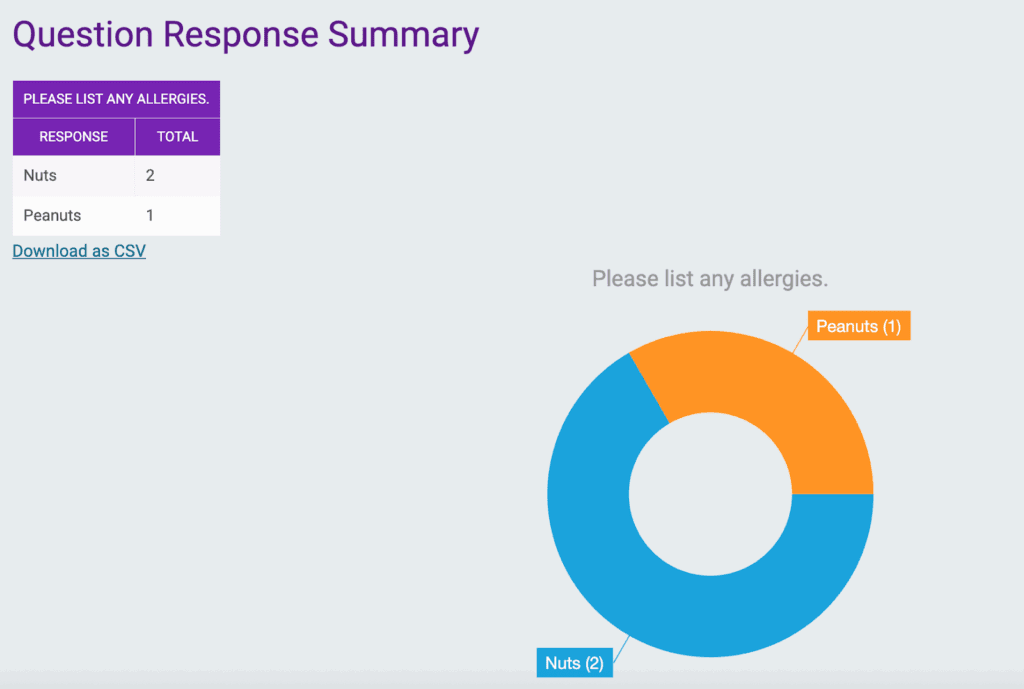
The Question Response Summary (under Reports >> Question Response Summary) allows you to view and export the question responses for the custom questions you ask your members. This data is shown in a table and a donut chart.

Note: Custom questions are set up under Membership >> Questions.
By default, the multiple choice question responses are the only ones expanded, but you can view the text field, essay, and timed entry questions at the bottom of the page. Click “+Load text responses” to show these free responses.

Financial Summary Report
The Financial Summary (under Financial >> Financial Summary) provides a high-level overview of the financial activity within your membership organization. You can also filter this information by date range using the filters at the top of the page.

On the Transactions tab, you can view the total amount of transactions that came into your organization through RunSignup and the amount of processing fees and sales tax that were removed from those transactions before being paid out, as well as any refunds, holdbacks or other adjustments made. You can also see the amount RunSignup owed to your organization, the amount that has already paid out, and the remaining balance owed.

You can click into these totals (Transactions, Refunds, or Holdbacks) to break down this information further and view the line items for each.
On the Payments tab, you can click to view each of your payments made to the organization or manually hold/release payments for the organization.

When you click “view your payments here”, you can view a report of each payment we sent to your organization and click into the following items to view additional details on the payment.
Payment ID: This will show you the transactions within the membership organization that are associated with that payment.
Invoice No./Funds Transfer: This will bring you to the transfer information at the payment account level.
See Line Items: This will show you all of the line items on that payment, which can include items from other races, ticket events or organizations on the same payment account that were processing transactions at the same time.

On the Payment Account tab, you can view the payment account name and estimated next payment, as well as click in to manage or edit your payment account.

As we create more summary reports, we will continue to add to this quick search page.