

If you’re hosting a membership organization on another platform and considering a switch, there’s never been a better time to move to RunSignup. With our new Membership Claiming Tool, migrating your existing members is a straightforward process — and your members can seamlessly pick up right where they left off. Here’s how it works.
The Migration Process at a Glance
Getting your membership organization up and running on RunSignup comes down to three simple steps:
- Set up your Membership Organization on RunSignup
- Import your existing member data
- Let your members claim their accounts
Let’s walk through each one.
Step 1: Set Up Your Membership Organization
Before importing any data, you’ll want to get your Membership Organization configured in RunSignup — including creating your Membership Levels. One important note: the Membership Level names you set up in the dashboard must match the names used in your import file, so it’s worth getting these right before you bring your data over.
Step 2: Import Your Member Data
Once your organization is set up, it’s time to bring your members over. Navigate to Memberships >> Imports in your dashboard. RunSignup supports two import methods:
Bulk Import (CSV) — the fastest way to migrate a large membership list. Head to Memberships >> Imports >> CSV Import, upload your file, and map your columns to the corresponding fields.


The required fields are First Name, Last Name, Email, Start Date, End Date, and Membership Level. You can also bring in a wide range of additional data like address, date of birth, phone, and more. A few things to keep in mind:
- Bulk imports are capped at 500 members at a time
- Multi-person memberships (such as family memberships) require a designated primary member and an External ID for all members
- Custom data fields outside of the fields available in the CSV column mapping cannot be imported and would need to be entered manually as custom questions for each member after the import.
Manual Import — for smaller lists or one-off additions, you can add members individually through the manual import option.
After your import is complete, we recommend sending a follow-up email to all members via Email >> Send Email with instructions on how to claim their account (more on that below).
Step 3: Members Claim Their Accounts
This is where the magic of the new Membership Claiming Tool comes in. Once your member data is imported, your members can easily find and claim their membership — no manual admin work required on your end.
Here’s what the process looks like for your members:
- If they already have a RunSignup account, they should log in first.
- Navigate to the Membership Lookup tab on your Membership Organization website.
- Search for their membership using their first name, last name, and/or email

- Click Claim on their membership, then select Claim Account to trigger a claim account email. This is done to verify that this individual has access to this email address.


- They’ll receive an email from info+auto@runsignup.com and they can click the Claim Account button in that email to finalize the process.

- If a member already has a RunSignup account, they’ll have the option to merge the imported membership with their existing profile, register it under a new account, or add it as a secondary user.
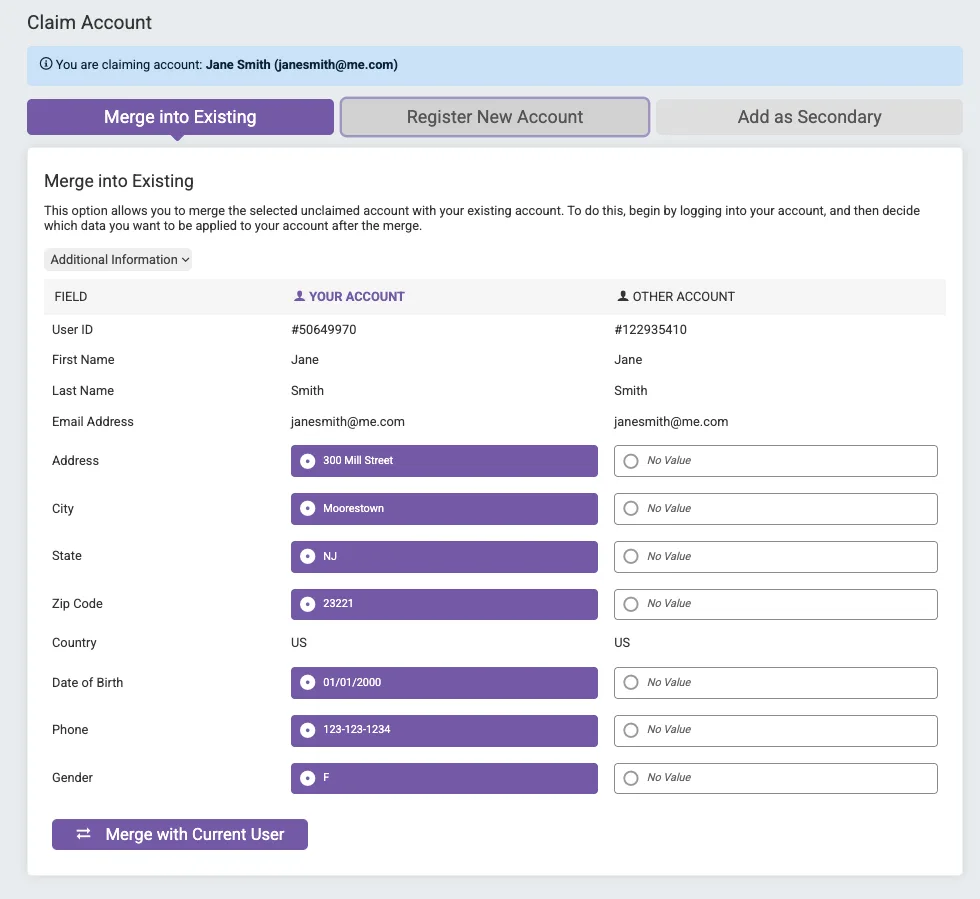
- If they are not logged in or new to RunSignup, they can create a new account as part of the claiming process.

- If they have an existing RunSignup account but you are not logged in, they will also see the option to log in and merge the imported membership with their existing account
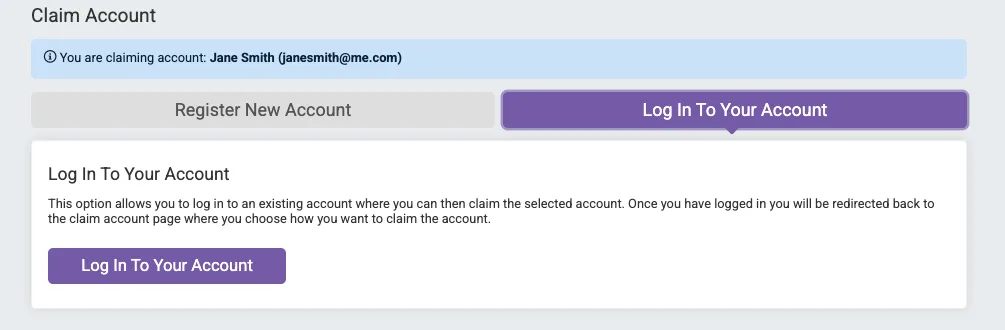
- Once claimed, members can view and manage their membership anytime from the My Club Memberships page in their RunSignup profile.
Ready to Make the Switch?
Migrating your membership organization to RunSignup doesn’t have to be a headache. With bulk importing and a self-service claiming flow, you can get your members transitioned quickly — and they’ll be set up with a full RunSignup account to manage their membership going forward.
Have questions about getting started? Check out our help documentation for Bulk Import Members and Manually Import Members, or reach out to our support team.