

If you’ve ever logged into your Race Dashboard and seen a red banner that says “The Payment Account For This Race Requires Attention!“, you’re not alone. This message is common, and in most cases it’s easy to resolve once you know what’s causing it.
In this guide, we’ll explain wha the message means, why it appears, and how to fix it step-by-step so your race payments continue without interruption.
What Does “The Payment Account For This Race Requires Attention!” Mean?
This message indicates that RunSignup has detected an issue with the payment account linked to your event. Our system periodically verifies payment accounts to ensure that the banking information on file matches the legal and financial records of your bank.
When something doesn’t match, our system will flag the account and display a red banner on your Race Dashboard, prompting your to review and update your information.

Why this Message Appears on Your Race Dashboard
There are several common reasons why your payment account may require attention:
- The legal name on your payment account does not match your bank records
- The bank account number is incorrect
- The routing number has changed
- Your bank was acquired or merged, resulting in new detials
- Required bank documentation is missing or outdated
Example: If your bank was recently acquired by another institution, your routing number may change. Even if your account still works, the system check may detect that the stored routing number no longer matches the bank’s current records.
How RunSignup Verifies Your Payment Account
To comply with payment processing and underwriting requirements, RunSignup verifies that:
- The Legal Entity name matches your bank’s records
- The account and routing numbers are valid
- Supporting documents (bank statement) confirm ownership
These checks help ensure secure, uninterrupted payment processing for your events.
How to Fix the Payment Account
Step 1: Navigate to Payment Account
Click your profile icon and select My Payment Accounts tab.
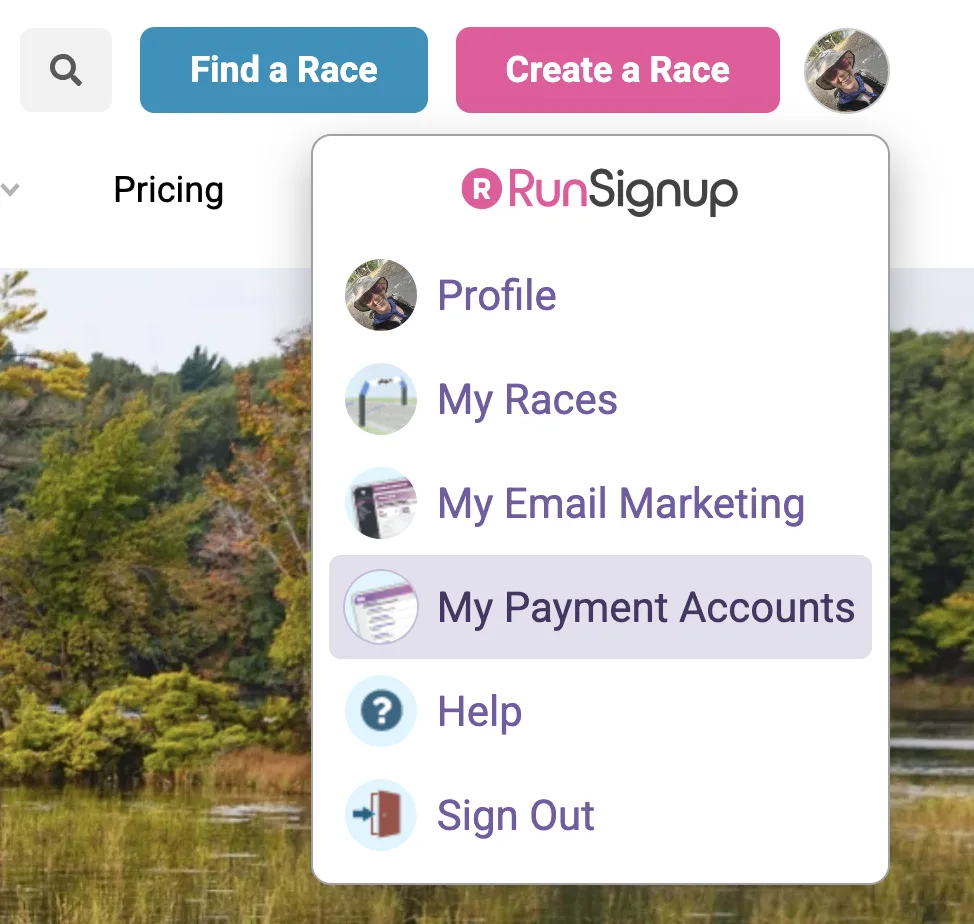
You can also access the My Payment Accounts tab from your Race Dashboard >> Financial >> Payment Accounts.
Step 2: Review and Update Banking Information
Once in the My Payment Accounts tab, carefully review your information by clicking Manage. Review and/or update the following:
- Legal Entity name
- Bank account number
- Routing number

Make any necessary corrections to ensure everything matches your bank’s records.
Step 3: Upload Updated Bank Documentation
Upload a recent bank statement that:
- Shows the legal name on the account
- Displays the full account number
- Is unedited and complete
This documentation is required for underwriting review.
Step 4: Save Changes
Once updated documentation has been submitted, your updates will be reviewed by the underwriting team. After approval, the red banner will automatically disappear from your Race Dashboard.
Common Questions About This Payment Account Message
Will this stop registrations or payments?
If left unresolved, payment processing may be impacted. It’s best to address the message as soon as possible.
How long does it take to resolve?
Most updates are reviewed within a few business days after documentation is submitted.
Do I need to fix this for every race?
No. Payment accounts are managed at the Legal Entity level, so updates apply to all associated races.
What if my bank recently changed names?
You’ll need to update your Legal Entity details and upload new bank documentation reflecting the updated bank information.
Helpful Resources for Managing Your Payment Account
- Set Up a Payment Account
- Manage Your Payment Account
- Accessing and Updating Your Payment Account
- Payment Account Underwriting & Documentation Requirements
- Video Walkthrough: Managing Your Payment Account
If you see the message “The Payment Account for This Race Requires Attention!”, don’t panic — it simply means your payment information needs a quick review. Keeping your banking details up to date ensures smooth payment processing and avoids disruptions to your event.
Still have questions on your payment account? Reach out to your RunSignup account manager or email info@runsignup.com.