

Race week is when the questions pile up. Where is packet pickup? Can I bring a stroller? Are dogs allowed? I got injured, what is your refund policy?
RunSignup AI Chatbot V2 answers those questions on your race website, using your event’s own information. It is the same customer service chatbot race directors have been using, rebuilt on RunSignup’s next generation AI infrastructure so it can reach the live data behind your event.
And as always, we offer this to our customers for FREE.
Why V2
The chatbot was already doing real work before V2. More than 1,900 event websites have it live today, up from 572 last November, and it has handled over 60,000 participant conversations and more than 91,000 messages, with reports of an 80% reduction in support emails from some of our top races.

Adoption has more than tripled since November. The chatbot is free with Websites V2 and an FAQ component.
V1 had one boundary. It knew what was on your website. When a participant asked about something that lives in your event setup instead of your FAQ, like the current price of the 5K or the date that price goes up, the chatbot could not reach it.
V2 removes that boundary by moving onto RunSignup’s own AI infrastructure, built on Amazon Bedrock and AgentCore. The foundation was designed around four things:
- Event Data Access – not just content, but data like results, pricing, location, etc. directly from the RunSignup database
- Scalability, so the chatbot holds up across every event website running it
- Safety and Security, with a separate knowledge base for each event
- Human in the loop, so a person approves anything the AI would change
Everything else in V2 follows from that foundation. Read more about RunSignup’s AI infrastructure.
What Is Different in V2
V2 gives the assistant two ways to find an answer. Your website content still feeds the knowledge base, so parking instructions, your race description, and your FAQ answers all teach the assistant about your event. Your event data is the new part, and V2 reaches it through MCP tools.
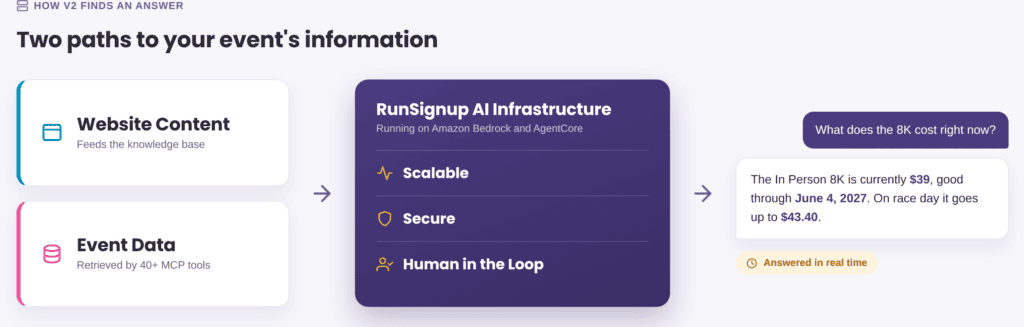
Website content teaches the assistant about your event. MCP tools go get the numbers that change.
What the MCP Tools Do
MCP stands for Model Context Protocol. Think of an MCP tool as a connector with one job and a strict definition of what it is allowed to do. Behind the assistant sits a library of roughly 40 of them, each wrapped with its own schema.
Instead of guessing, the assistant calls the tool that holds the answer:
- Registration prices and price increase dates
- Event times and schedules
- Packet pickup details
- Bib numbers and registration status
- Race results
Here is that working, asked on the Scott Coffee site:
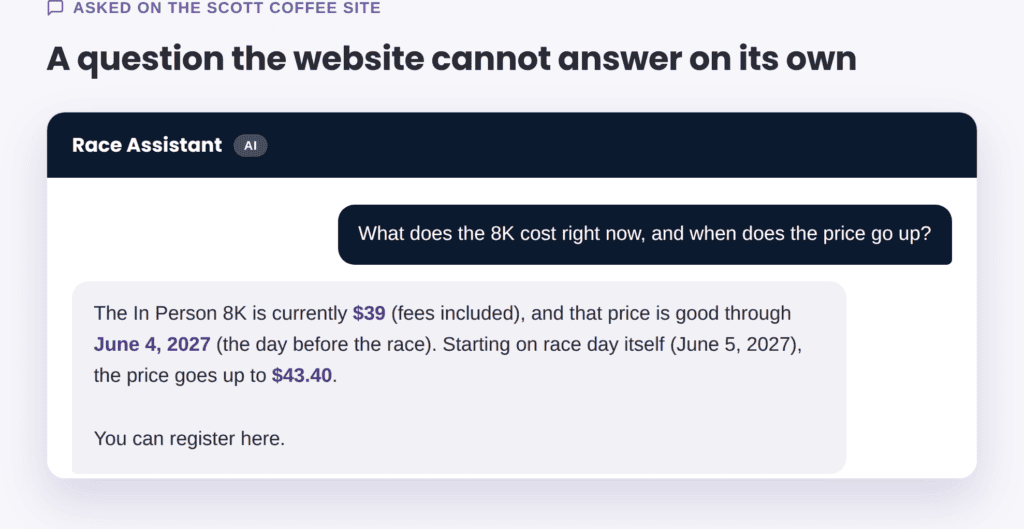
The price, the cutoff date, and the race day increase all came out of the event setup.
Results, Without Leaving the Conversation
Results are the clearest example of what the MCP connection does for you. A participant used to get pointed at a results page. Now they can just ask.
Dynamic Results launched in the original chatbot back in November 2025. What V2 adds is depth, because the Results MCP tools go straight to the finishing data. Ask about one runner and you get their whole history with your race:

One question, twelve races, pulled straight from your results.
Since it pulls directly from the database, it also includes live data DURING a race. This includes split points and comparisons between participants.
Last Minute Race Changes
Change the course or race time on Thursday before the race, and the assistant and your participants know on Thursday.
Most race directors have lived this one. It is race week, the weather forecast is not looking good, and the course or time of the race may need to change. You can now update the course description and include the new info on your website. From that moment, every participant who asks about the route or time gets the new answer, not the old one.
Update the content in RunSignup and the assistant picks it up, because website content re-indexes in 10 to 15 seconds.
RunSignup owns every part, allowing you to update your participants in real time no matter how they choose to contact you.
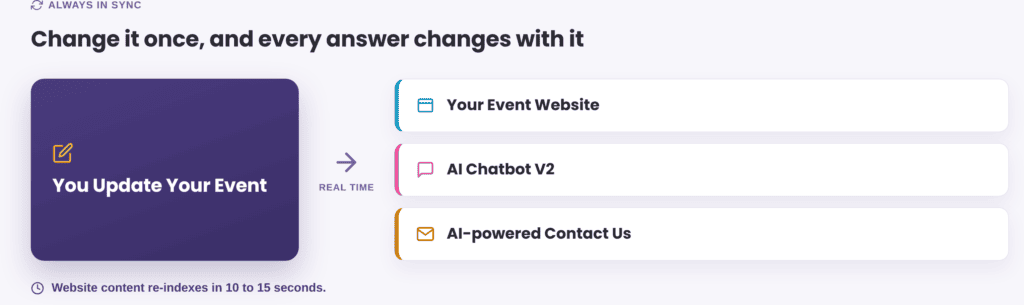
One update in RunSignup reaches your website, the chatbot, and the contact form.
How to Get Started in Your Dashboard
Open AI Chatbot (BETA) >> Chatbot Setup. Three screens handle the whole workflow, but two things need to be in place first:
- Your event is on Websites V2.
- Your website has an FAQ component with at least 5 answered questions.
That second one is not a formality. The setup screen says it plainly: the AI Chatbot uses the content on your event website and the FAQ component as its primary sources of information. A thin FAQ gives the assistant less to work with.
Chatbot Setup is where you name the assistant and give it a voice. The name defaults to Race Assistant, and the contact email is what participants see if they hit a problem with the chatbot. Upload a square 128 x 128px logo and it rides in the bubble that opens the chat. Theme styling matches your website automatically, and one toggle turns the whole thing on or off.

The banner at the top of the setup screen names the two sources the assistant reads from.
Chat Sessions is where you read what participants actually asked. Filter by last activity date, whether a session has a topic, or message count, then select View to open the whole exchange. Improve Response is waiting at the bottom of the answer.

The list narrows it down. The session view shows the conversation exactly as the participant saw it.
Custom Responses is where your own guidance lives. Improve Response is not new, and neither are theme styling, the custom logo, or the page component option that came with the September 2025 release. What changed is the workflow. In V1 it opened in a dialog. In V2 it opens an Add Custom Response page with the Prompt and Custom Response already filled in. Edit either field, then select Save Custom Response.

This is the human in the loop for content. The assistant does the reading, you correct the answer.
Everything you save lands on the Custom Responses page, with Edit and Delete beside each entry. Use your FAQ Component for questions that help most participants, like parking or packet pickup, and save a Custom Response for the occasional question that does not need a public entry.

The page draws the line for you: uncommon topics here, common questions in the FAQ component.
If an answer is wrong because a price or a date changed, fix the event setting or the website content first. A Custom Response layered on stale information hides the real problem instead of solving it.
It Works With AI-powered Contact Us
The AI-powered Contact Us form runs on the same foundation, the same knowledge base, and the same MCP tools. Participants do not all pick the same way to contact you. Some open the chat bubble, some fill out the contact form, and either way they get the same answer from the same live event data. The contact form also keeps a path to a person, so anything the AI cannot resolve still reaches you.
Hear It From Bob
Bob Bickel walks through AI Chatbot V2 in this video. Watch the chatbot video.
Try It
AI Chatbot V2 is rolling out now, and you can see it working on the Scott Coffee Moorestown Rotary 8K website today. Ask it about the race, a price, or last year’s results.