
Event Information
WHEN
ON DEMAND
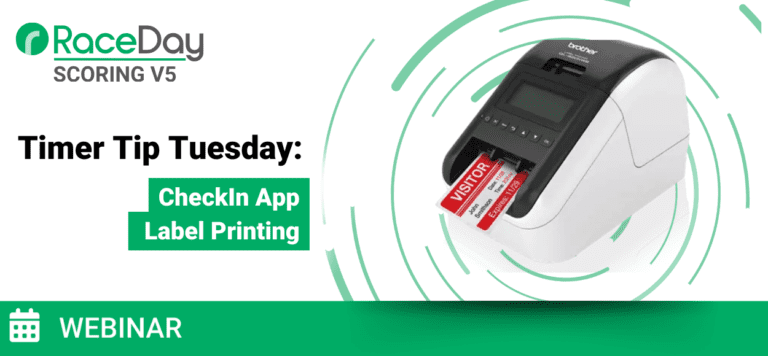
Join us for this Timer Tip Tuesday where we’ll dive into RunSignup’s enhanced label printing feature in the RaceDay CheckIn app! This quick-hit session is designed to get timers up to speed with the latest updates that make label printing faster and easier—especially for Apple devices.
In this session, we’ll cover:
- A short demo video showing label printing in action
- How to set up and use native printing with supported devices
- Why Bluetooth printing is the preferred method
- Tips for choosing the right printer for race day
Whether you’re printing bib labels, name tags, or gear check stickers, this session will help streamline your race day operations with smooth, speedy label printing.
Summary of Webinar
Overview
This Timer Tip Tuesday session provides a practical, hands-on walkthrough of label printing in the RaceDay Check-In App, with a focus on real race-day workflows. The webinar explains why label printing is gaining traction, how to select and configure supported printers, and how setup differs between Android and iOS devices. It also covers best practices for reliability and speed, plus creative use cases—such as late registrant bib labeling, results labels, medal engraving verification, and swag fulfillment tracking—that help timers scale operations while delivering a premium participant experience.
Why Use Label Printing?
Label printing adds flexibility and polish to race-day operations, especially when combined with dynamic bib assignment.
Key benefits include:
Supports dynamic bib assignment while still personalizing packets
Provides a premium experience with participant names on bibs or packets
Reduces bib swaps among families and groups
Improves swag and add-on fulfillment accuracy
Helps meet race director expectations or RFP requirements
Encourages races to keep registration open longer
Label printing is increasingly requested by race directors and is becoming a differentiator for timing services.
Supported Printers
RunSignup supports Brother label printers that work with native printing.
Recommended models:
Brother QL-810W
Brother QL-810WC
Brother QL-820NWB (recommended)
Why the QL-820NWB:
Built-in screen for troubleshooting
Supports Bluetooth, Wi-Fi, and Ethernet
Most reliable option for race-day environments
Bluetooth printing is strongly recommended to reduce network-related issues.
Android Setup Overview
For Android devices:
Install the Brother Print Service from the Google Play Store
Select and configure the printer in the Brother app
Connect via Wi-Fi or Bluetooth (Bluetooth preferred)
Printer selection is handled at the OS level, not in the Check-In App
Check-In App Settings
Enable label printing at either:
Configuration level, or
Device level
Turn on Auto Print After Review to streamline check-in
Train volunteers carefully so they understand:
Printing does not equal check-in completion
The final “Check In” step is still required
iOS Setup Overview
iOS devices support native printing, which offers the best performance.
Requirements:
iOS 13.4 or later
Brother printer paired via Bluetooth
Setup steps:
Go to Configuration → Label Printing
Open Label Print Settings
Select a Native Printer (Bluetooth preferred)
Pair the printer in iOS Bluetooth settings
Important notes:
Native print is one device per printer
Bluetooth is more reliable than AirPrint
Avoid connecting too many devices to a single printer
Label Printing During Check-In
Recommended workflow:
Enable Auto Print After Review
Complete check-in → label prints automatically
Use the printer icon to:
Reprint labels
Access print settings (long press)
Always test:
Every device
Every printer
The actual network or hotspot being used at packet pickup
Best Practices
Use Bluetooth whenever possible
Limit printers to one device (Bluetooth) or two devices (Wi-Fi max)
Label and rename printers clearly (e.g., “RSU-Printer-1”)
Test on-site network conditions, not just at home
Train volunteers with real test check-ins
Have a backup plan in case printing needs to be limited or paused
Label printing has been proven at scale, including events checking in 17,000+ participants in a single day.
Creative Use Cases
Late Registrant Bib Labeling
Keep registration open until race day
Print labels on-site for late registrants
Deliver the same experience as pre-registered participants
Results Labels & Medal Engraving
Print finish time labels post-race
Verify results for medal engraving stations
Apply labels to bibs, medals, or posters
Use internal questions and scoring sync for accurate data
Name-Only Bib Labels
Print large, bold name labels for dynamic bibs
Remove unnecessary fields
Adjust font size and style for visibility
Test long names to ensure proper fit
Swag & Add-On Fulfillment Tracking
Use custom questions to track item pickup
Update participant records during check-in
Print fulfillment status on labels
Reduce confusion for post-race or delayed pickups
Additional Tips from Support Experience
Learn how to reset and forget Bluetooth devices
Be precise with label media size and type
Test monochrome vs. color labels
Consider travel routers for consistent network control
Used equipment can be a cost-effective way to pilot label printing
Key Takeaways
Label printing is a scalable, race-ready solution
Bluetooth + native printing delivers the best performance
Auto-print dramatically speeds up check-in flow
Thoughtful setup and testing prevent race-day issues
Creative label uses can unlock new value for timers and races