

Use data replacement tags to personalize your emails and show your understanding and appreciation of your participant’s relationship with your event and organization. With just a few clicks — or by typing a percent sign (%) — you can dynamically insert participant-specific information into your emails, helping your messages feel more relevant, timely, and personal.
When creating an email, you can select replacement tags from a dropdown menu or simply starting typing a percent sign (%) in the text editor. As your type, the list of available tags will automatically appear and narrow down based on your selection. The available data replacement tags depend on the list you’re emailing (for example, Current Year Participants, Fundraisers, or a custom uploaded list).
What are Data Replacement Tags?
Data replacement tags are a feature in RunSignup that allow you to insert personalized data from your database directly into an email. This data can come from system lists (such as registered participants or donors) or from custom lists you upload.
For example, replacement tags can pull in information like:
- First or last name
- Registration ID
- Bib number
- Team name
- Custom data from an uploaded CSV
These tags automatically populate with the correct information for each recipient when the email is sent. In RunSignup, replacement tags are typically formatted with a percent sign (%), such a %FIRST_NAME%.
The main purpose of replacement tags is to help you send personalized relevant emails at large — without manually editing each message. customize individual emails, making them more personal and relevant to each recipient without having to manually edit each message. In RunSignup, these tags are often indicated by percentage signs (e.g., %FIRST_NAME%) and can be used to pull in a wide variety of fields to personalize your emails.
Why Use Data Replacement Tags?
Using data replacement tags in your emails offers several key benefits:
- Automation: Simply type a percent sign (%) to see a dropdown of available tags, making it easy to add dynamic content while building your email.
- Personalization: Replacement tags automatically insert recipient-specific details, helping each email feel personal — even without sending to thousands of people.
- Efficiency: Create professional, customized emails in minutes. The system pulls the correct data for each recipient, saving timed and reducing manual work.
- Improved Deliverability:Personalized emails—especially those using basic tags like first name—can help improve engagement and deliverability.
- Accuracy: Using system-generated tags reduces the risk of errors that can occur with manual entry.
- Professionalism: Emails that reference a participant’s specific details look more polished and intentional, reinforcing your event’s credibility.
How to Use Data Replacement Tags?
Follow these steps to use data replacement tags in Email V2.
1. Start Creating Your Email
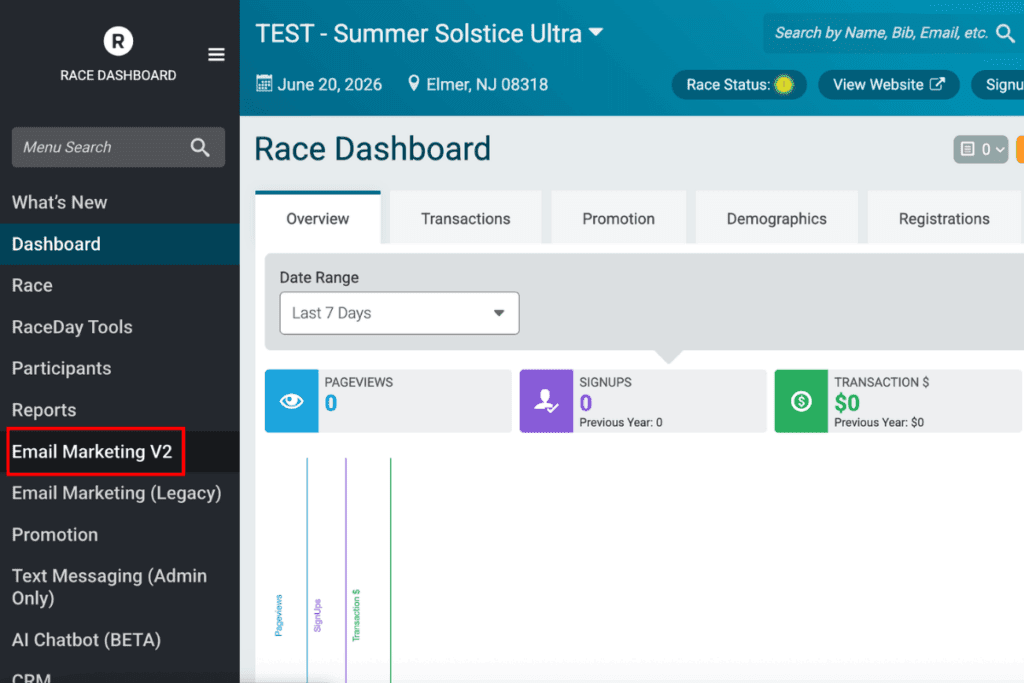
- Navigate from the your Race Dashboard to Email Marketing V2 > Send Email or Templates (RunSignup’s prebuilt emails).
2. Locate Data Replacement Tags
- While composing your email, find the data replacement tags option. This can be found in the text editor by clicking Placeholders.

3. Insert a Replacement Tag
You can either
- Click on the Placeholders dropdown to see a list of available tags and select the one you want, or
- Simply type a percent sign (%) in the text editor and a dropdown list will appear and narrow down as you continue typing.

Adding data replacement tag via dropdown list

Adding data replacement tag via typing a percent sign (%)
4. Personalize Your Content
- Place the selected tag where you want the personalized data to appear. For example, %FRIST_NAME% will automatically populate each recipient’s first name when the email is sent.

Previewing volunteer email with data replacement tags
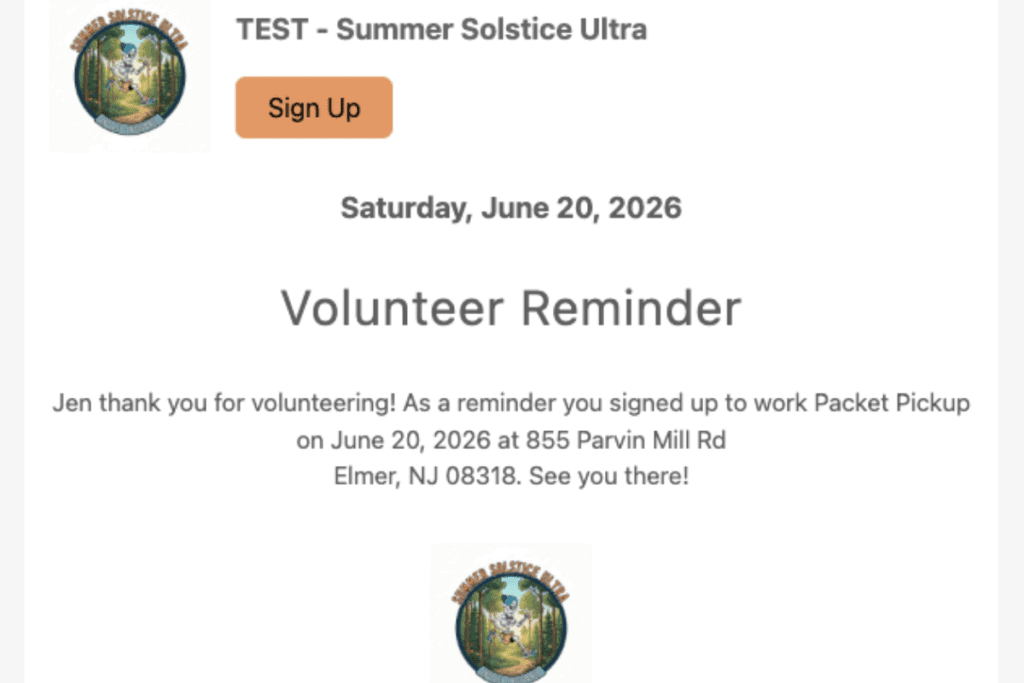
Sent volunteer email with data replacement tags
5. Preview and Send
- Always preview your email before sending to confirm the tags appear correctly and the message reads as expected.

Previewing data replacement tags in registration is open email
Please note: Some data replacement tags can be used in subject lines, but not all. Currently, there is no dropdown for subject line data replacement tags, so they must be entered manually and exactly as required (including capitalization). Double-check your subject line to avoid errors.
Tips:
- Use replacement tags to personalize emails for participants, fundraisers, volunteers, donors, and more.
- The replacement tags available to you depend on the list you’re emailing.
- If you need additional personalization, consider uploading a custom list with extra data points.
Custom Data Replacement Tags
Yes, — RunSignup supports custom data replacement tags.
When you upload a custom list (such as a CSV from last year with specific data or a list with volunteer assignments), each column in the file can become a data replacement tag. This allows you to personalize emails using any data you have available, such as volunteer tasks, assigned roles, or custom notes.
Custom data replacement tags make it easy to send highly targeted, relevant communications to specific audiences — without additional manual effort.
Still have questions? Reach out to your RunSignup account manager or email info@runsignup.com.