
Event Information
WHEN
ON DEMAND
Your event website is often the first impression you make on potential participants—so let’s make it a great one.
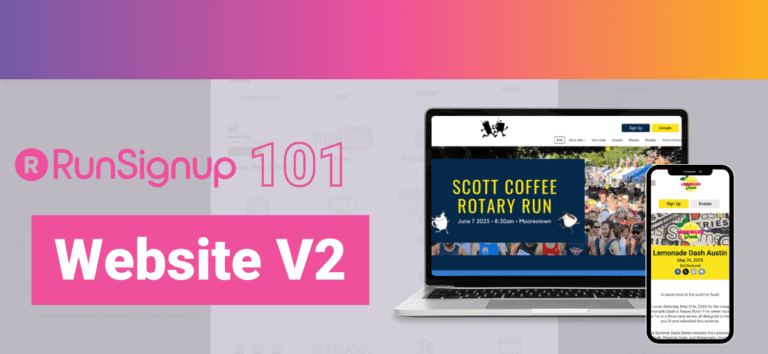
In this RunSignup 101 session, our onboarding team will guide you through building and customizing your race website using Website V2, our flexible and easy-to-use website builder. You’ll learn how to create a professional, mobile-friendly site that helps you tell your story, highlight key info, and drive registrations.
Key topics include:
- Adding and organizing content with Website Builder V2
- Customizing your event page with your branding
- Best practices for navigation and mobile optimization
- And more!
Bring your questions! We’ll answer written questions throughout the webinar and highlight key ones at the end of the session.
Summary of Webinar
What Website V2 Is (and Why It Matters)
Website V2 is RunSignup’s newer, more flexible website builder that lets races:
create custom pages and sections
use modern components (cards, video, data widgets, Strava routes, etc.)
better organize menus with dropdowns
keep sites mobile responsive and cleaner than legacy
Key theme: You can start simple, then gradually build out.
Dashboard Tips They Covered First
How to get back to your race dashboard
Click the profile icon (top right) on RunSignup → My Races → select your race dashboard
From your profile page, there are director links including “My Races”
Even on your public race website, if you’re logged in as a director, the profile icon includes a direct Dashboard link
Two dashboard searches (easy to confuse)
Top-right search: participant search (name/bib/email) for managing registrations
Top-left search: dashboard menu search (find tools/features fast)
“Show More” on left menu
Expands the full dashboard navigation so you can see every menu item.
Enabling Website V2
Where: Race Website V2 → Website Settings
Turn on the Enable Website V2 toggle.
Important behavior:
You can toggle V2 on/off to compare V2 vs legacy (helpful while learning)
If the race is live and getting traffic: don’t keep switching back and forth (supporters will get confused)
What Transfers from Legacy vs What You Must Rebuild
Transfers automatically
Basic race info from the wizard: name, date, description, location
Many system pages (e.g., info, signup, donate)
Logo
Color scheme (default or custom)
Must be added manually in Website V2
Banner image (legacy banner doesn’t automatically map into V2 banner settings)
Some system pages that depend on enabled features (often: Groups/Teams, Results, etc.)
Custom Sections (legacy custom sections do not auto-copy)
They also pointed to a YouTube walkthrough: “Simple upgrade to Website V2” showing a one-to-one migration approach.
Branding in Website V2
Inside the builder, use Customize your theme (dropdown):
Logo + favicon
Logo carries over; can be changed
Add a favicon (browser tab icon)
Color scheme
Carries over; can be refined with color pickers / theme options
Banners
Homepage banner
Default: text overlays the image (race name/date/location)
New layout options:
Stacked layout: image is not cropped; text moves below the image
Full height layout: banner image extends behind menu/header to the top
Can also hide image or disable banner
Banner text can be customized/hidden
Page banners (internal pages)
Separate banner settings per page
Can use background image or default color
Default vs stacked layout; hide/disable options
Footer + social links
Add custom text (contact info, tax ID, links)
Hide race logo or sponsor logos in footer (optional)
Add social media links + up to three custom links
Website Builder: How It’s Organized
Key controls
View Page button: see the public page you’re editing
Help button: documentation for the builder
Right-side Navigation list = the menu tabs shown on your site
Click a page in navigation to edit it in the center preview area
Navigation: What You Can Add
When you click + in Navigation, you can add:
New Page (custom page)
Fully editable in the website builder
System Page
Pulls from dashboard settings (not editable inside the builder)
Examples: Results, Groups/Teams pages (if enabled)
External Link
A menu tab that points to another URL
Option to open in a new tab
Dropdowns
Group menu items to keep navigation organized
Everything supports drag-and-drop reordering and moving items in/out of dropdowns.
System Pages vs New Pages
System pages
Content is controlled by dashboard settings
Builder displays a notice like: you can’t edit this here; go to dashboard settings
Good for “standard” pages like results/groups once those features are enabled
New pages
Blank customizable pages where you build sections and content components
Have page settings:
title (menu label)
URL slug
meta description (SEO snippet)
hide/publish later
dropdown placement
Sections and Layout
Think of the hierarchy as:
Page → Sections → Components
Section options
Single-column or two-column sections
Section settings:
section anchor URL
hide/publish later
restricted width vs full width
padding / spacing
optional “expand section height”
border settings (rounded vs square, thickness)
background color or image
In two-column sections, some settings apply per-column (background/padding, etc.)
Components: What You Can Add Inside Sections
They highlighted several groups:
Common content components
Text, buttons, dividers
Contact forms
Event tiles
System components (pull from race wizard data)
Event description, location, map, etc.
You edit the source data back in the wizard/dashboard
Media components
Video, playlists, slideshows
Data components
Participant count
Countdown clock
Top teams / groups / charities / fundraisers
Donation thermometer
Sponsors display
Cards component
Up to 4 across in a section
Each card can combine image + text + links
Responsive layouts vary depending on number of cards and screen size (recommended: test on desktop/mobile)
Strava route component
Paste a Strava Route ID
Embeds an interactive map
Can also link to a Strava club
Event List component
Showcase other events by IDs:
race/ticket event IDs
timer ID
partner ID
(IDs are found at the end of dashboard URLs)
Views: grid or list; each item links to the event’s website.
Demo Walkthrough Highlights
Katie used a test race (“Wellness in Motion”) to show:
Enable Website V2 toggle
Banner image must be re-added via:
Customize Theme → Homepage BannerSwitch layout to Stacked to avoid image cropping and move text below
Legacy custom sections remain accessible in:
Race Website → Custom SectionsBut must be recreated in V2
Add an External Link menu item (example: “Visit VB”)
Add a Course Map as an image component in a new homepage section
Reorder sections with arrows (e.g., place course map under description)
Change section background color to match the theme
Re-add missing system pages (example: Results) via Navigation → System Page
Show a “built-out” example race website (Savannah Women’s Half & 5K) to illustrate advanced layouts, dropdown organization, and richer content.
Q&A: Editing V2 While Keeping Current Site Live
Question: Can you build Website V2 while keeping the current site live?
Answer (paraphrased):
Yes: don’t enable the Website V2 toggle yet
You can still build inside the Website Builder and use its preview
It’s harder to see the full public experience until enabled, but you can prepare content and flip it on later (often after the race, or when ready)