Running clubs are always looking for ways to reduce friction for their members. With hundreds of clubs already using Memberships to register and engage their community, the next challenge is member check-in for running clubs that host recurring training runs. Attendance tracking is vital — but forcing members to sign up weekly is onerous, and paper-based alternatives are a pain. Now, running clubs can leverage TicketSignup and the Tickets App to make weekly runs a breeze while still ensuring runner safety and data accuracy.
Streamline Weekly Training Runs
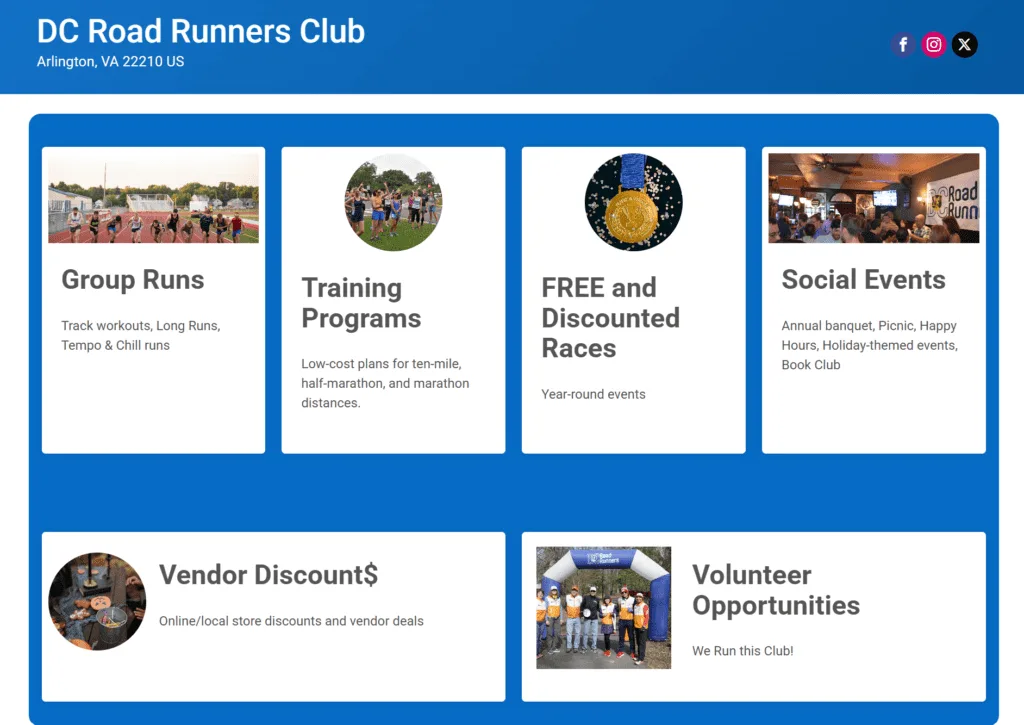
Clubs like the DC Road Runners Club have a number of benefits for members, including regular group runs and training programs, social events, and volunteer opportunities.
While some of those may require pre-registration (even by members) for logistics, On-Site Ticketing for Members provides a new way to track member engagement at regular training sessions that don’t require advance notice.
Organizations can now set up a ticketed event and issue tickets to valid members on site. When a member arrives, the check-in operator scans their membership QR code. The app verifies their membership, displays their details, and lets the operator create a ticket right there. No pre-registration. No database. No import steps. The member walks up, gets scanned, and gets in.
How it works:
Step 1: Host Membership on RunSignup: Runners become club members (just as they would now).
Step 2: Create a Simple Ticket Event: The club uses TicketSignup’s Simple Ticket Events to create a recurring “Weekly Training Run” event. If it’s only for members, it can be set to private.
Step 3: Enable Ticket Check-In: Within the Ticket Event Dashboard, you can enable check-in under Event >> CheckIn >> CheckIn App Setup. Set the check-in start and end dates and a password for your check-in volunteers/staff.

Step 4: Log in and Configure App: Download the TicketSignup Tickets App, search for the ticket event in the app, and enter the password you set up on Step 3 above.

In order to allow for member scans, you must first add a configuration in the app. To do so, click the More tab in the bottom right of the app and select Event Settings. Click Add New Configuration.


First, name your configuration. Next, under Onsite Ticket Sales, check Add Membership Ticket and select the ticket you would like to add to your ticket event when scanning memberships.

Click Save.
Step 5: Scan Membership QR Codes: When club members arrive at the run location, they can simply pull up their Membership QR code. Navigate to the CheckIn tab and use the camera icon in the top right corner to scan their membership QR code.

Review the information and click Check In to add the ticket.
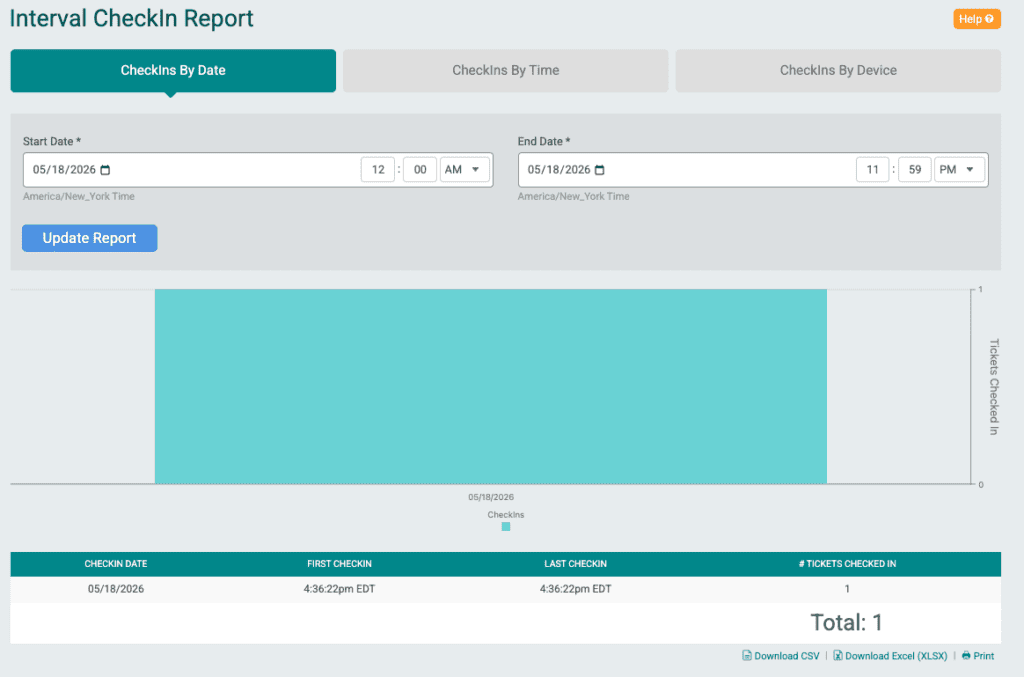
Step 6: View Ticket/Check-In Reports: Once the check-in has been completed, you can view the tickets added and checked in your tickets app as well as in the dashboard for the ticket event.

View a report of the tickets added in the ticket event dashboard under Reports >> Ticket Purchases.

View CheckIn Reports in the ticket event dashboard under Event >> CheckIn >> CheckIns by Ticket Report and Event >> CheckIn >> CheckIns Interval Report.