
Whether you’re handing off race management to a new director, navigating a staff change, or transitioning your organization, needing to switch Payment Account owners is an important step to keeping your finances running smoothly on RunSignup.
In this blog, we’ll walk you through exactly how to switch Payment Account owners — step-by-step. If you’re new to Payment Accounts or need a refresher on the basics, check out our guide on Accessing and Updating Your Payment Account first.
Before You Start
A few things to keep in mind before making any changes:
Only current Payment Account owners can make changes. If you are not listed as an owner, you’ll need to contact the existing owner to request access or ask them to make the changes on your behalf. (More on this below).
There are two aspects of the payment account to which account owners can have access:
- Legal Entity: A control person and/or authorized signatory can be listed as a Legal Entity owner. These individuals have access to the legal entity information and the ability to agree to agree Adyen’s (RunSignup payment processor) Terms of Service for the organization.
- A Control Person is someone who has significant influence over the company’s decisions, often due to ownership or executive power. While an authorized signatory can execute transactions, they might not necessarily have broad decision-making authority over company operations.
- An Authorized Signatory is an individual who has been formally granted the authority to sign contracts, financial documents, or agreements on behalf of a company or organization.
- Payment Account: Individuals with Payment Account access have access to the banking information and payments.
There are two levels of account access:
- Admin – Full access to all Payment Account options (including editing payment information and adding additional access).
- Use Only – View-only access; users can assign the payment account to races but cannot make changes.
Make sure the new owner has a RunSignup account before you begin. You’ll be adding them by email address, so they’ll need to be registered on the platform.
Step-by-Step: How to Switch Payment Account Owners
Step 1: Navigate to Your Payment Account
You can access your Payment Account in two ways:
- Profile icon > My Payment Accounts tab
- Race Dashboard > Financials > Payment Accounts

Step 2: Add the New Owner
Click Manage, then the Settings tab on the Manage Payment Account page. Once there, scroll down to the Account Owners.
Add Payment Account Owners
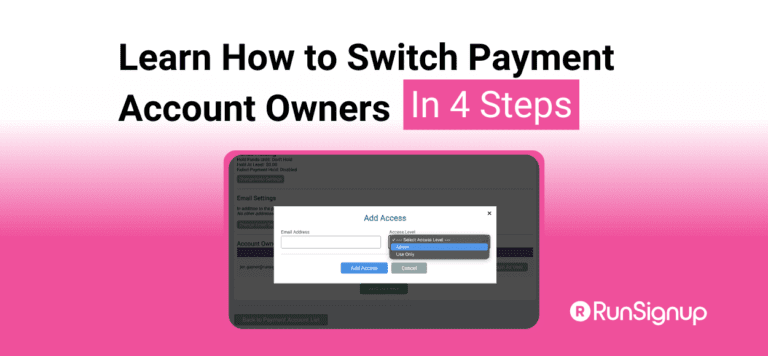
Click Manage Add Access and enter the email address associated with the new owner’s RunSignup account. Select the appropriate access level — Admin if they need full control of the payment account, or Use Only if they only need to assign it to races.


Add Legal Entity Owners
Click into the Legal Entity to manage Legal Entity Access. Under the Account Owners section, click Add Access and enter the email address associated with the new owner’s RunSignup account. Select the appropriate access level — Admin if they need full control to edit the information, or Use Only to view the information.


Step 3: Confirm the New Owner Has Access — Before Removing the Old One
This is an important step that’s easy to overlook. Once you’ve added the new owner, ask them to log in and confirm they can successfully access the Payment Account before you proceed. Removing the current owner first could lock everyone out if there’s an issue with the new owner’s access.
Step 4: Remove the Old Owner
Once the new owners has confirmed access, click the “x” next to the outgoing owner’s email address to remove them. That’s it — the transition is complete!
What If You’re Not the Current Owner?
If you’re not currently listed as a Payment Account owner, you won’t be able to access or modify it directly. You’ll need to contact the existing owner outside of RunSignup to request that they add you.
Not sure who the current owner is? If you attempt to access a Payment Account you don’t own, RunSignup will display a red error message that includes the owner’s contact email address.
Note: If you are unable to get ownership of the legal entity, you will need to create an entirely new payment account for that entity to make updates to the entity.
Related Resources
- Accessing and Updating Your Payment Account — Covers Payment Account basics, business name changes, and updating payment information
- Payment Accounts: Watch & Learn — Video tutorial series
- Manage Payment Account – Support Article
Still have questions? Reach out to your RunSignup account manager or email info@runsignup.com.