FAQ Component for Websites V2

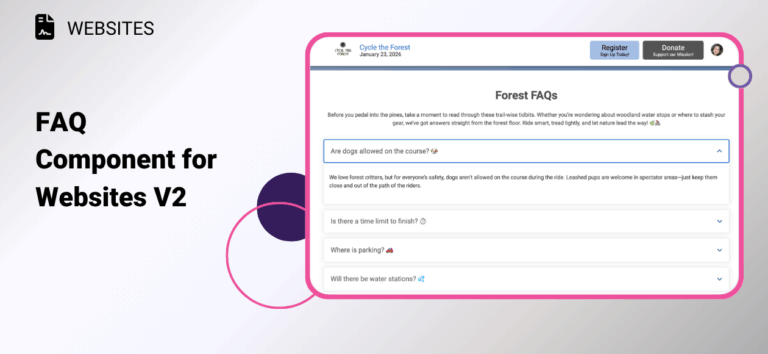
Participants always have questions. Now there’s a smarter, faster way to answer them. The new FAQ Component for RunSignup websites makes it easy to display commonly asked participant questions and clear, helpful answers. Whether you’re organizing a race or a peer-to-peer fundraising…

Read More

How to Add Results to Website V2

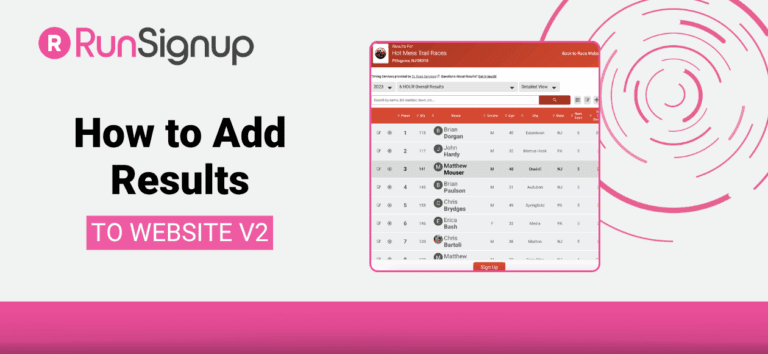
Website V2 gives you a clean, modern way to display everything your participants need – before, during, and after race day – including one of the most important post-race features. Results! Whether you’re uploading results from RaceDay Scoring, using a CSV file,…

Read More

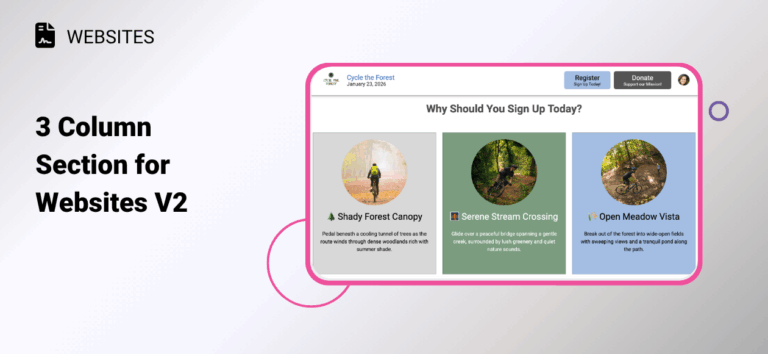
3 Column Section for Websites V2

There is an option to add a 3 column section for Websites V2. Events now have even more flexibility with website design and layout. To add a 3 column section to your website, add a new section to any page on your…

Read More

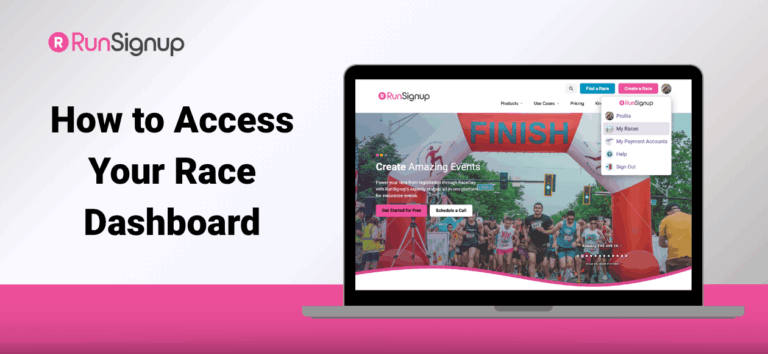
How to Access Your Race Dashboard

The Race Dashboard is your command center for managing your event — from setting up registration to customizing your race website and tracking participant data. Whether you’re brand new to RunSignup or just need a quick refresher, accessing your dashboard is easy….

Read More

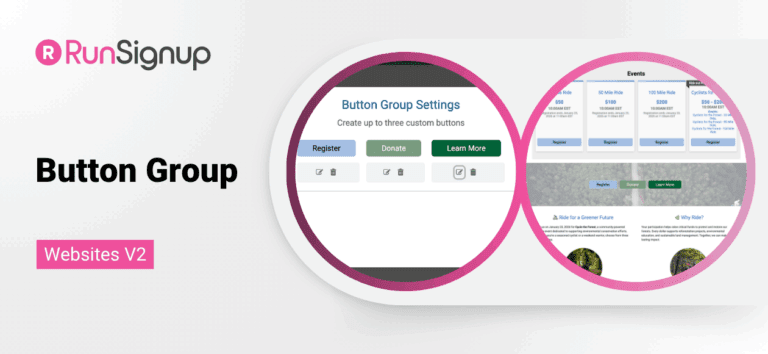
Button Group for Websites V2

There is a new button group component for Websites V2. Feature multiple calls to action; for example, Register, Donate, and Fundraise. With options to display multiple buttons on image or color backgrounds, there are endless design capabilities to make a truly unique…

Read More

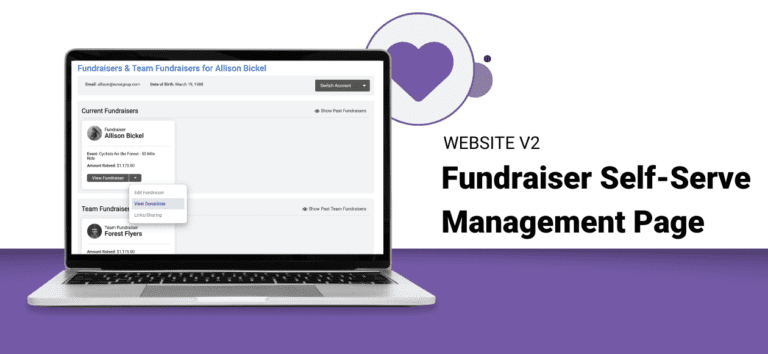
Fundraiser Management Self-Serve Page

It’s easier than ever for Peer-to-Peer Fundraising events to help supporters find, update, and manage their fundraising pages with GiveSignup’s new Fundraiser Management Self-Serve Page. From here, fundraisers can view their current and past individual and team fundraisers. Quick links to edit…

Read More

Circle Images for Race Websites

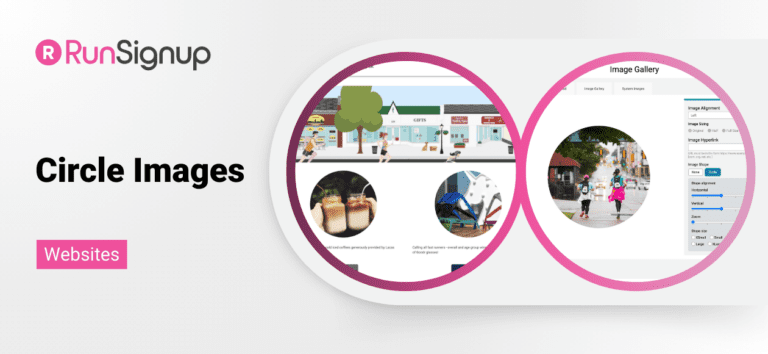
You can now feature circle images on RunSignup’s free event websites. This provides more design flexibility and customization for your unique events. First, add an image to your website through the Website Builder or choose an existing image to edit. This can…

Read More

Subscribe to Our Blog

Customize Lists...
Loading